
Appearance
vscode
插件安装
下面是我们在开发中常用的插件
Vue Language Features (Volar) (必须安装) 支持 Vue3 语言高亮、语法检测,还支持 TypeScript 和基于 vue-tsc 的类型检查功能
.n2zhKiOT.png)
使用时需要注意:
首先要禁用 Vetur 插件,避免冲突;
推荐使用 css/less/scss 作为 <\style>的语言,因为这些基于 vscode-css-language 服务提供了可靠的语言支持;
如果使用 postcss/stylus/sass 的话,需要安装额外的语法高亮扩展。postcss 使用 language-postcss,stylus 使用 language-stylus 拓展,sass 使用 Sass 拓展;
Volar 不包含 ESLint 和 Prettier,而官方的 ESLint 和 Prettier 扩展支持 Vue,所以需要自行安装。
Prettier - Code formatter (风格插件,必须安装)
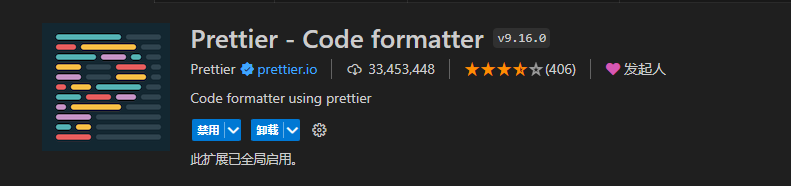
安装后,前往文件 > 首选项 > 设置 打开右上角.json 文件配置,更改以下配置,特别注意
这是开发工具全局配置,后续将改为项目集成(推荐 eslint + prettier),文档撰写中
json{ "editor.formatOnSave": true, // 保存自动格式化 "editor.defaultFormatter": "esbenp.prettier-vscode", // 格式化采用 prettier-vscode // 以下是prettier插件配置 "prettier.printWidth": 120, // 超过最大值换行 "prettier.tabWidth": 2, // 缩进字节数 "prettier.semi": false, // 行尾分号,关闭 "prettier.singleQuote": true, // 字符串设置为单引号 "prettier.arrowParens": "avoid", // (x) => {} 箭头函数参数只有一个时是否要有小括号。avoid:省略括号 }GitLens — Git supercharged(推荐安装)
Git 代码管理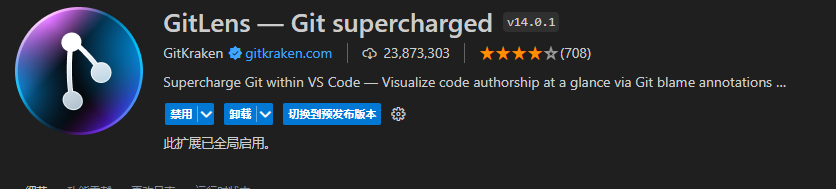
Vue VSCode Snippets(推荐安装)
代码片段快速生成
Vue 3 Snippets (推荐安装) 代码提示插件

DotENV(推荐安装)
环境配置高亮
indent-rainbow(推荐安装)
空白的背景颜色来展现缩进
安装玩插件后,可以在 vscode 的 文件 > 首选项 > 设置 点击右上角,打开 settings.json,加入如下配置:以下设置非必须设置
json// Using the light mode "indentRainbow.indicatorStyle": "light", // we use a simple 1 pixel wide line "indentRainbow.lightIndicatorStyleLineWidth": 1, // the same colors as above but more visible "indentRainbow.colors": [ "rgba(255,255,64,0.3)", "rgba(127,255,127,0.3)", "rgba(255,127,255,0.3)", "rgba(79,236,236,0.3)" ],Auto Rename Tag(推荐安装)
自动重命名标签Auto Close Tag(推荐安装)
自动添加关闭标签Code Spell Checker
单词拼写错误检查
vscode 的设置(setting.json)—— 编辑器、插件配置
以下是推荐的 VS Code 配置,可直接复制到项目根目录的
.vscode/settings.json或全局 settings.json 中
json
{
  // ==================== 编辑器基础配置 ====================
  "editor.fontSize": 14,
  "editor.tabSize": 2,
  "editor.wordWrap": "on",
  "editor.lineHeight": 24,
  "editor.minimap.enabled": false,
  "editor.bracketPairColorization.enabled": true,
  "editor.guides.bracketPairs": "active",
  "editor.linkedEditing": true,
  "editor.suggestSelection": "first",
  "editor.quickSuggestions": {
    "strings": true
  },

  // ==================== 保存与格式化 ====================
  "editor.formatOnSave": true,
  "editor.defaultFormatter": "esbenp.prettier-vscode",
  "editor.codeActionsOnSave": {
    "source.fixAll.eslint": "explicit"
  },
  "files.eol": "\n",
  "files.trimTrailingWhitespace": true,
  "files.insertFinalNewline": true,

  // ==================== Prettier 配置 ====================
  "prettier.printWidth": 120,
  "prettier.tabWidth": 2,
  "prettier.semi": false,
  "prettier.singleQuote": true,
  "prettier.arrowParens": "avoid",
  "prettier.trailingComma": "all",
  "prettier.endOfLine": "lf",

  // ==================== ESLint 配置 ====================
  "eslint.validate": [
    "javascript",
    "javascriptreact",
    "typescript",
    "typescriptreact",
    "vue"
  ],

  // ==================== 文件关联 ====================
  "files.associations": {
    "*.vue": "vue",
    "*.wxss": "css",
    "*.wxml": "html",
    "*.cjson": "jsonc",
    "*.wxs": "javascript"
  },

  // ==================== 搜索排除 ====================
  "search.exclude": {
    "**/node_modules": true,
    "**/dist": true,
    "**/build": true,
    "**/.git": true
  },

  // ==================== Emmet 配置 ====================
  "emmet.includeLanguages": {
    "wxml": "html",
    "vue-html": "html"
  }
}
项目级配置(推荐)
建议在项目根目录创建 .vscode/settings.json,将项目相关的编辑器配置放入其中,并提交到版本库。这样团队成员打开项目时,会自动应用统一的编辑器配置,无需手动设置。